Administration

Decide who can reach what — in plain English, enforced on the server

Most job-management software gives you a handful of fixed user types and hopes none of your people fall between them. GATSY gives you an area-by-area grid: for each part of the app, how much authority a role holds, whose records it reaches, and which jobs. Every answer is written in words a foreman would use, and every one of them is enforced by the server rather than by hiding a menu item.

  • 30-day Free Trial
  • No Credit Card Required
  • Cancel Anytime
The Roles screen: company roles and outside-user roles on the left, with job access and a per-area permission grid
No Access, View Only, Standard, Manage
Four levelsNo Access, View Only, Standard, Manage
Whose records a level reaches
Own or allWhose records a level reaches
On every plan — roles cost nothing
Unlimited usersOn every plan — roles cost nothing
A deleted record is restorable, not gone
30 daysA deleted record is restorable, not gone

What Administration does

A role is a grid, not a job title

For every area of the app, one answer: how much, over whose records.

Four levels, described the way people talk

No Access is "hidden entirely — not in the menu, and the page cannot be opened by typing its address". View Only is "can open and read everything here. No buttons to add, edit or delete". Standard is "everyday work: add and edit records. Cannot delete, approve, or change settings". Manage is everything, including deleting, approving and changing that area's settings.

Whose records, as a separate question

Level and reach are independent. Someone can hold Manage on expenses and still see only their own — Own Data means "only rows this user created or is assigned to", All Data means "every row in the company". A field worker gets Standard on their own time; a controller gets the same level across everybody's.

Which jobs, decided once for the whole role

A role reaches either every job in the company or only the jobs its holders are on the team for. It narrows and never grants: the levels still decide what can be done on the jobs it reaches, and a job outside that set reads as not found rather than forbidden.

The consequential actions come out separately

Approving expenses, deleting a closed job, emptying the trash permanently, signing proposals, and seeing job cost are each their own switch — "actions that move money, destroy records, or expose what a job is making". None of them ride along with a level.

Nobody can build a role above themselves

Any option beyond your own access is greyed out in the editor, so a role cannot be used to grant more than the person creating it holds.
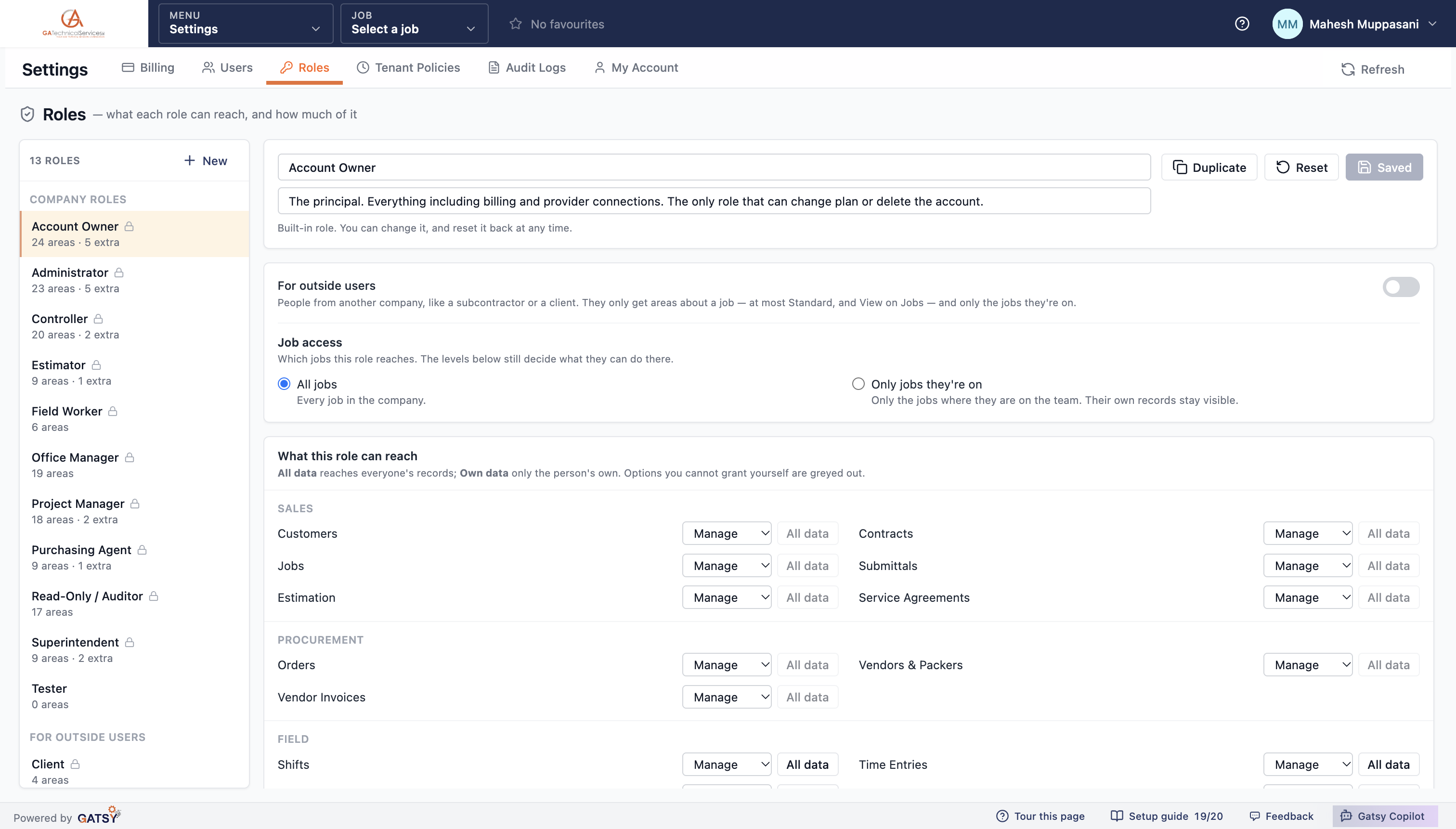
The permission grid: each area with a level dropdown and an Own data or All data setting, grouped by Sales, Procurement and Field

Add a person, give them a role, done

Roles ship built in. Most companies never need to build one from scratch.

Ready-made roles, editable

Account Owner, Administrator, Controller, Estimator, Office Manager, Project Manager, Purchasing Agent, Superintendent, Field Worker and a read-only Auditor all arrive configured. Each is marked built-in: change it however you like, and reset it back to the original at any time.

Or start from one that is close

Duplicate a role, adjust the handful of areas that differ, and name it after what your company actually calls those people. Each role carries a one-line summary of how many areas and extra permissions it holds.

Outside people are a separate kind of role

A role can be marked as being for people from another company — a general contractor or a subcontractor. They reach only the jobs they are on, only job-shaped areas, never job cost, and the role editor offers nothing more.

Unlimited users on every plan

Adding somebody does not cost a seat, so the right answer is never "share a login".

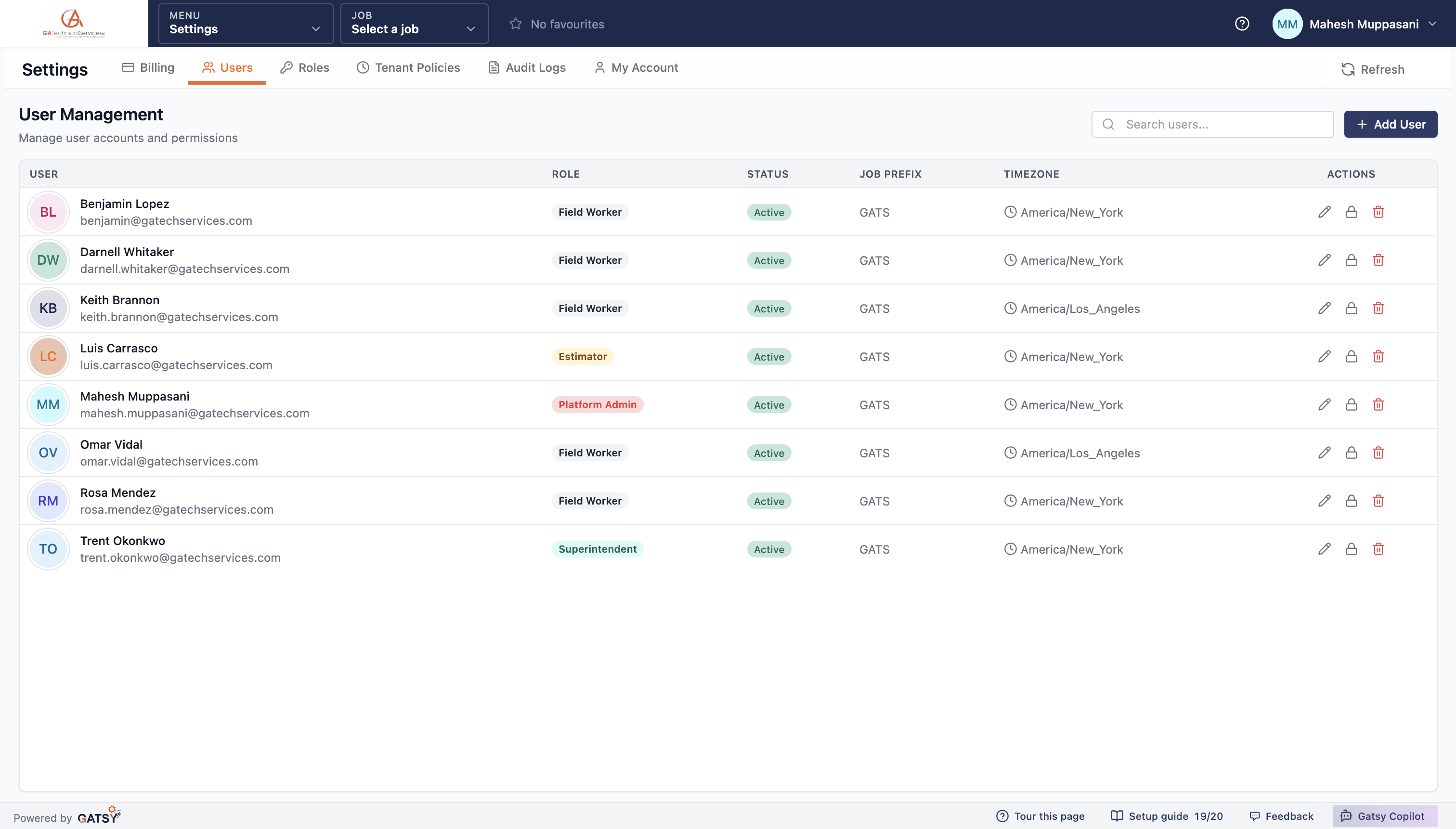
User management: each person with their role, status, job prefix and timezone

The company's standing rules, in one place

Set how clock-in, task sheets, estimating and submittals behave — once, for everybody.

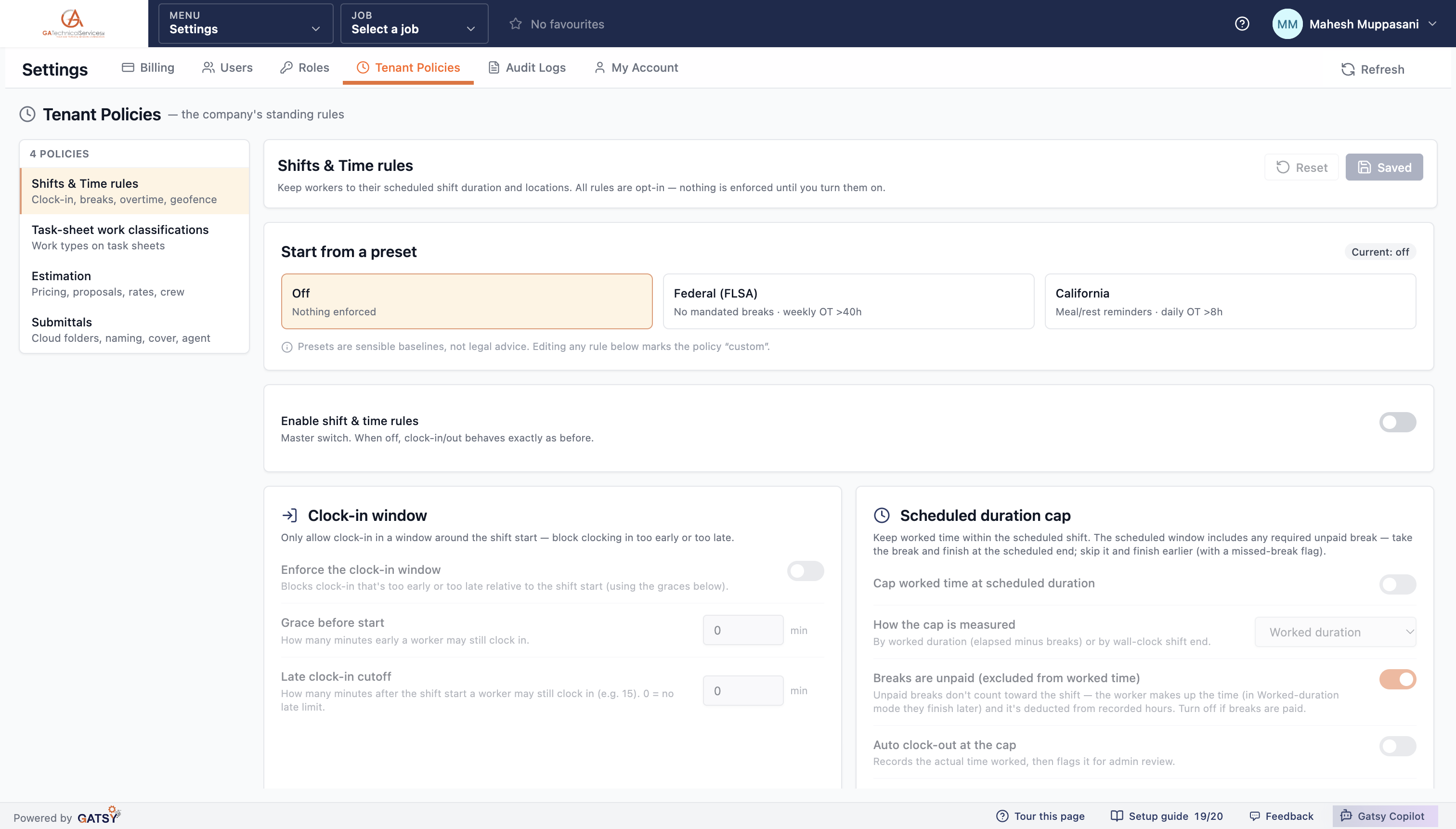
Shifts and time rules

A clock-in window with a grace before start and a late cutoff, a cap on worked time at the scheduled duration, whether breaks are unpaid, auto clock-out at the cap, and a geofence. Every rule is opt-in — nothing is enforced until you turn it on.

Start from a preset

Off, Federal (FLSA) or California. The product is straight about what they are: sensible baselines, not legal advice. Change any rule underneath and the policy is marked custom.

Task-sheet work classifications

The work-type columns a foreman fills on the daily task sheet, and the options when assigning each crew member's work type. These apply to every task sheet whether or not the shift rules are switched on.

Estimating and submittals defaults

How Calculate Bid prices labor and sizes the crew, how a new estimate's proposal reads, where submittal packages and data sheets are kept in the Cloud, how they are named, and what the cover letter says. Each job starts from these and can diverge without touching them.

Tenant Policies: four policy sections, a preset picker of Off, Federal FLSA or California, and the clock-in window rules

Who changed what, and when

A searchable record of every meaningful action, and a way back from the ones that were a mistake.

Named records, not row IDs

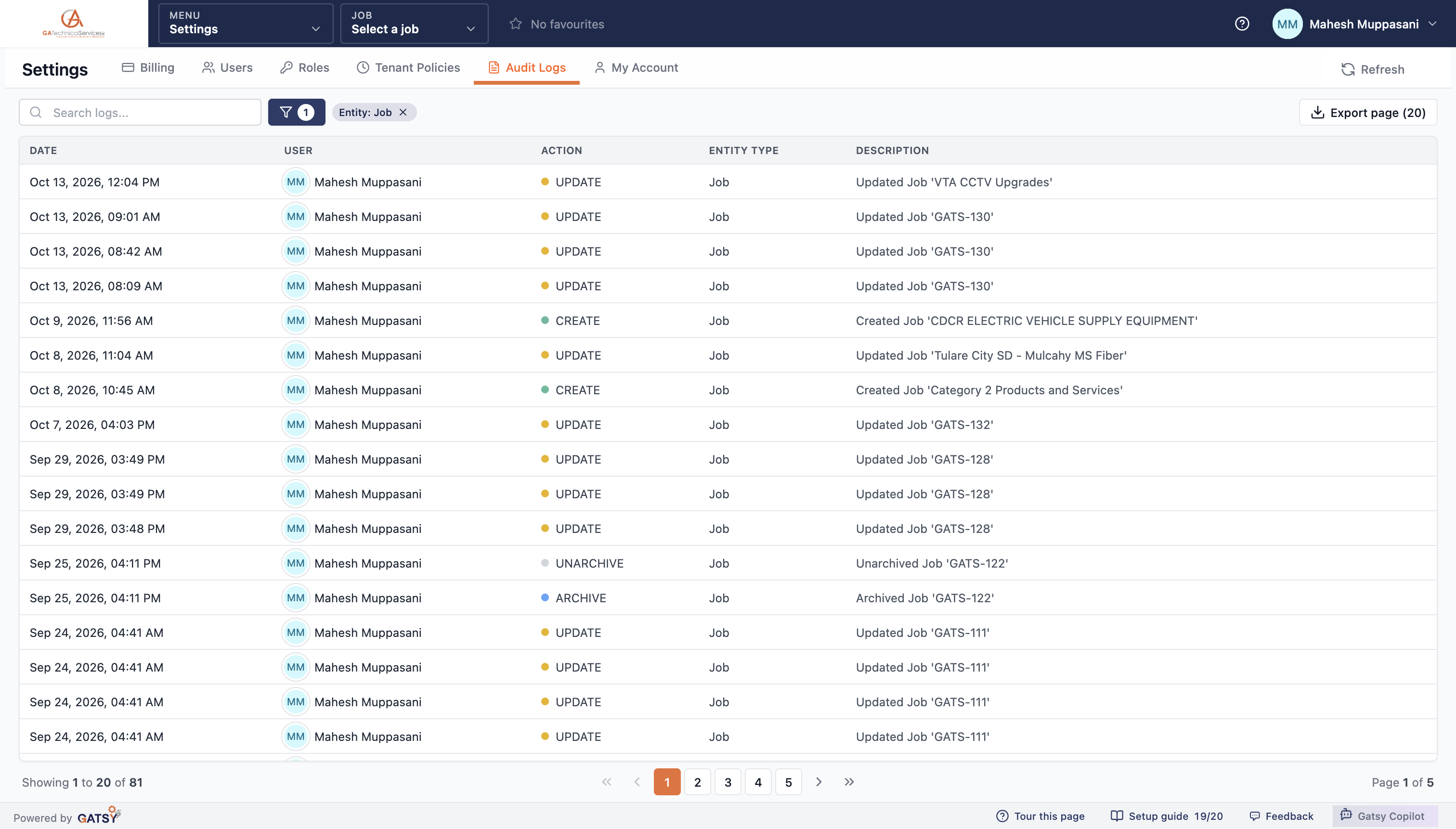
Each entry reads the way the work happened — "Updated Job 'VTA CCTV Upgrades'", "Created Job 'CDCR Electric Vehicle Supply Equipment'", "Archived Job 'GATS-122'" — with the date, the person and a colour-coded action.

Across the whole system

Creates, updates, deletes, archives, cancellations, exports, clock-ins and clock-outs, bulk uploads, and the RFQ lifecycle from created through sent, quoted and awarded. Nearly thirty kinds of record are covered — jobs, customers, contracts, estimates, orders, vendors, shifts, time entries, task sheets, expenses, submittals and more.

Narrow it, then take it with you

Filter by action, record type, person or company, search the descriptions, and export what you are looking at.

Written as the work happens

Entries are recorded by the system as records change, not assembled afterwards from a report — so the log is the same whether somebody acted from the browser or the phone.

The audit log filtered to jobs, showing create, update, archive and unarchive entries with the person and the record name

Deleting is a 30-day decision, not a final one

The thing somebody removed by accident on a Friday is still there on Monday.

The product says the rule on the page

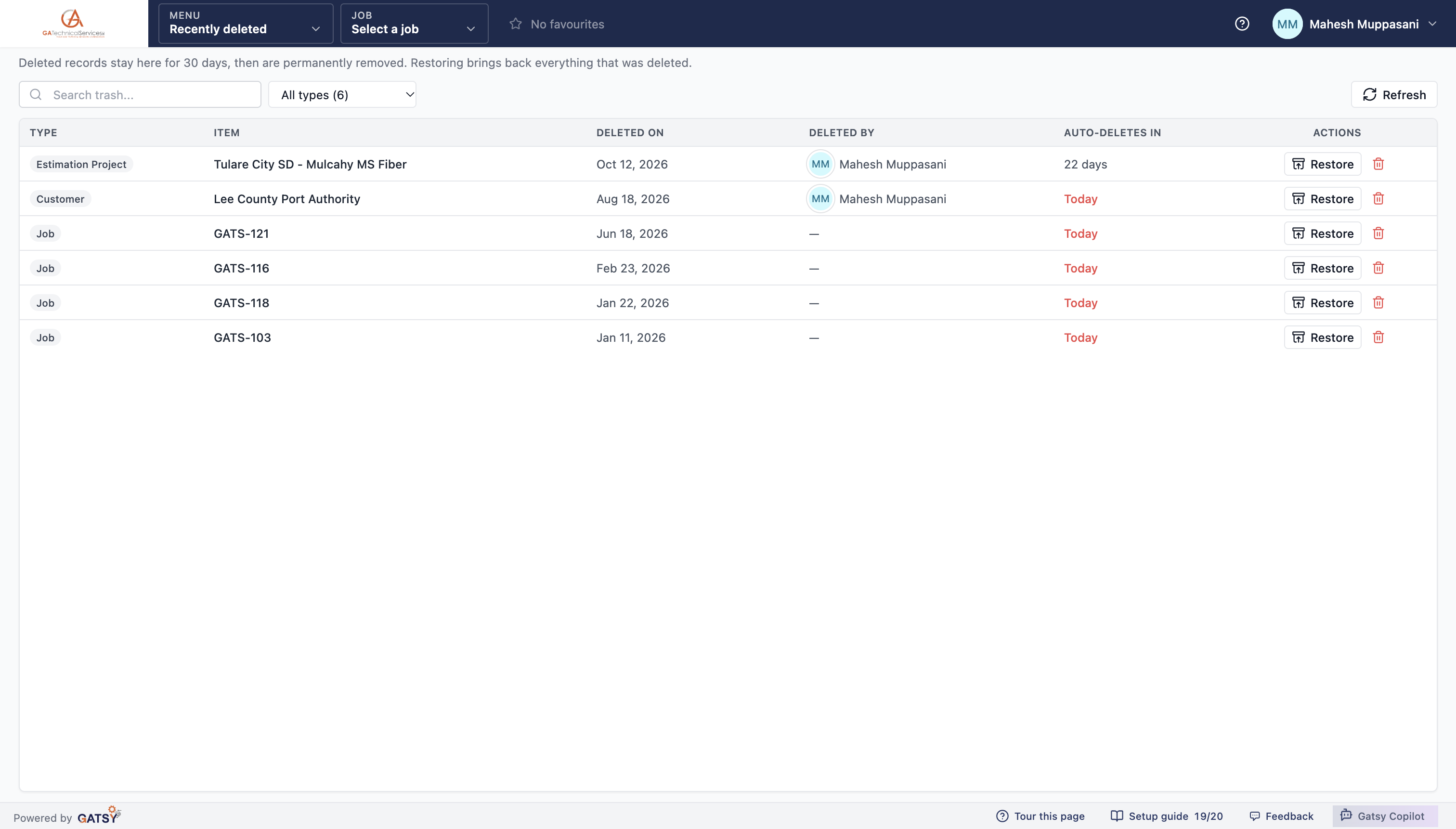
"Deleted records stay here for 30 days, then are permanently removed. Restoring brings back everything that was deleted."

You can see the clock

Every row shows what it is, what it was called, who deleted it, when, and how long is left — counting down to "Today" in red on its last day.

Restoring brings the whole thing back

A deleted job takes its related records down with it and brings them back up with it. Restoring a vehicle returns its fuel history and its service intervals too.

Purging early is its own permission

Removing something permanently before its 30 days are up is a separate switch, deliberately held by almost nobody, and the audit log records the deletion either way.

Recently deleted: estimation projects, customers and jobs with who deleted them and how many days before they are purged

How access gets set up

  1. 1

    Start from a built-in role

    Ten company roles and two for outside people arrive configured and editable.

  2. 2

    Adjust the areas that differ

    Per area: how much authority, whose records, and which jobs the whole role reaches.

  3. 3

    Add your people

    One role each. Unlimited users on every plan, so nobody shares a login.

  4. 4

    Set the standing rules

    Clock-in, breaks, overtime, task-sheet work types, estimating defaults and submittal folders — once, for everybody.

Questions contractors ask

Is hiding a page the same as blocking it?

No, and GATSY does not rely on it. The screen only labels the decision; the server checks every request. An area set to No Access cannot be opened by typing its address, and a job outside a role's reach comes back as not found.

Can somebody have full control of an area but only see their own records?

Yes. Level and reach are separate settings. Manage on expenses with Own Data means a person can add, edit and delete their own expenses and will never see anybody else's.

How do I stop field crews seeing what a job is making?

Seeing job cost is its own switch, independent of every level, and it is off for the field roles by default. Roles for people outside your company cannot be granted it at all.

Do extra users cost extra?

No. Every plan carries unlimited users, so adding a foreman, an apprentice or an outside subcontractor does not change the bill.

What happens if someone deletes something they should not have?

It goes to Recently deleted for 30 days with who removed it and when, and restoring it brings back everything that was deleted alongside it. The audit log separately records the deletion. Purging something before the 30 days is a permission of its own.

Can I change a built-in role, or do I have to copy it?

Either. Built-in roles are editable in place and can be reset back to their original configuration at any time, and you can duplicate one if you would rather keep the original untouched.

Ready to run every job in one place?

Start your 30-day free trial today. No credit card, no setup fee, and we’ll get GATSY configured around how your business already works.

GATSY AI estimating workspace showing a priced project takeoff
30-day Free TrialNo Credit Card RequiredCancel Anytime
View Manual